Hey!
A month ago, I published a post named “A Month of SkEditor 3 Alphas”. Time really flies; it doesn’t feel like a month has passed since then.
The last build was also published more than a month ago, which broke our build streak (builds used to drop almost every 1–3 days!). But now, I’m back with a new release, and this time, it’s the fifteenth alpha build of SkEditor 3!
Why the wait?
I want to be direct with you: the scope of this build isn’t as large as the wait might suggest. I was abroad for a while, and I was also busy with other things, leaving me with little time to work on SkEditor. On the other hand, there have been more than 100 commits since the last build! I’ve tweaked a lot of small things across the app. There are also some bigger changes, which is why I’m writing this post instead of just publishing a simple changelog.
Bugs & feedback
Some of these changes were made just a day after the last build was released, and I honestly don’t even remember most of the minor adjustments. Because of this, this version might be a bit more buggy than usual. That’s why I’d like to ask you to report any bugs you find and share your feedback on the new features.
The return of the Analyzer!
The Analyzer is probably the most important feature of SkEditor, and it’s finally back in SkEditor 3!
Currently, it is in a very early stage, so you shouldn’t expect it to work perfectly just yet.
However, it clearly shows the direction I’m taking and highlights the new features that are on the way.
The Bottom Drawer
There is now a new home for tools in the app - the bottom drawer!
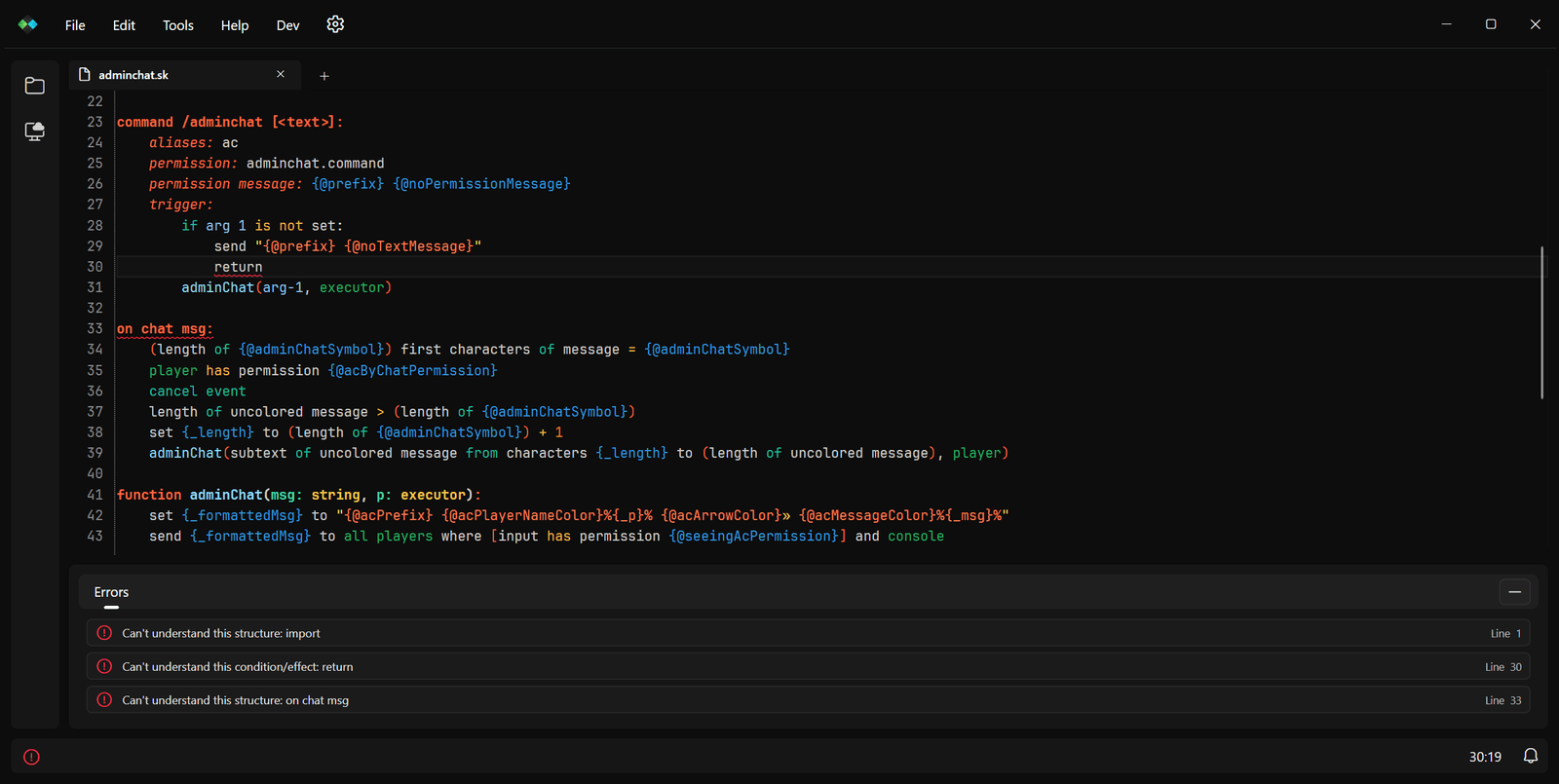
You’re probably familiar with the concept of a bottom drawer from other editors or IDEs. You can open, close, and resize it as you please.
Previously, the Analyzer had an “Analyze” button in the status bar, alongside the error count and other file information. Now, the status bar only shows a single, small, icon-only button.
This button quickly tells you the status of the Analyzer: whether it is actively analyzing or if it has found any errors or warnings. Clicking it opens the bottom drawer, where you can view the results of the analysis in a scrollable list. From there, you can click on any error or warning to jump directly to the corresponding line in the editor.
Analyzer installation
The Analyzer is still far from finished. That’s why it’s currently an experimental feature that you have to enable in the Experiments section of the settings. A restart of the app is required after enabling it.
There’s currently no way to download the required SkAnalyzer.jar file automatically. You will need to:
- Download the file manually from the GitHub Release page.
- Open the SkEditor config directory (you can open it in the Advanced Settings).
- Navigate to the
Analyzerfolder, and thenBinaries(this structure will be created automatically when you launch SkEditor with the Analyzer enabled for the first time). - Place the
SkAnalyzer.jarfile in there.
This also applies to the Analyzer’s dependency, which is the Java 21 runtime. You will need to install it manually and make sure it’s in your PATH environment variable (basically, running java --version in your terminal should return version 21).
Currently, there is no option to specify a custom path to the Java executable.
Once set up, SkEditor will attempt to run the Analyzer on startup (you will see a loading indicator in the status bar).
Far from perfect
The Analyzer’s functionality is currently quite limited. It runs automatically, analyzing your script half a second after you stop typing. At the moment, almost nothing is configurable.
Limitations, shortcomings, and known issues:
- It still runs on Skript 2.13.2.
- There are no error tooltips in the editor yet (the markers appear, but they don’t show any information when you hover over them).
- No
@skignoresupport yet. - Custom addons must be added manually to the
Analyzer/Server/pluginsfolder. Make sure they are compatible with Skript 2.13, and restart SkEditor after adding them. - A lot of other features are still missing - this is just a small prototype :)
The Terminal feature
You may remember that SkEditor 2 featured a prototype of a Terminal. It now returns in a more official, advanced form - though it remains in an experimental state.
You can enable it in the Experiments section of the settings, and it will appear as a new tab in the bottom drawer. If you don’t have the Analyzer enabled, you can still open the bottom drawer and the Terminal by navigating to Tools > Terminal in the main menu.
This feature is also just a prototype. It cannot be configured (it automatically selects the default shell for your system), and it can sometimes be extremely buggy. While most Windows-specific bugs have been resolved, there are still some serious issues with scrolling and resizing the panel. On Linux (and potentially macOS), I’m pretty sure the experience is even rougher. I will be working on fixing these issues, but believe me, it is not as straightforward as it seems.
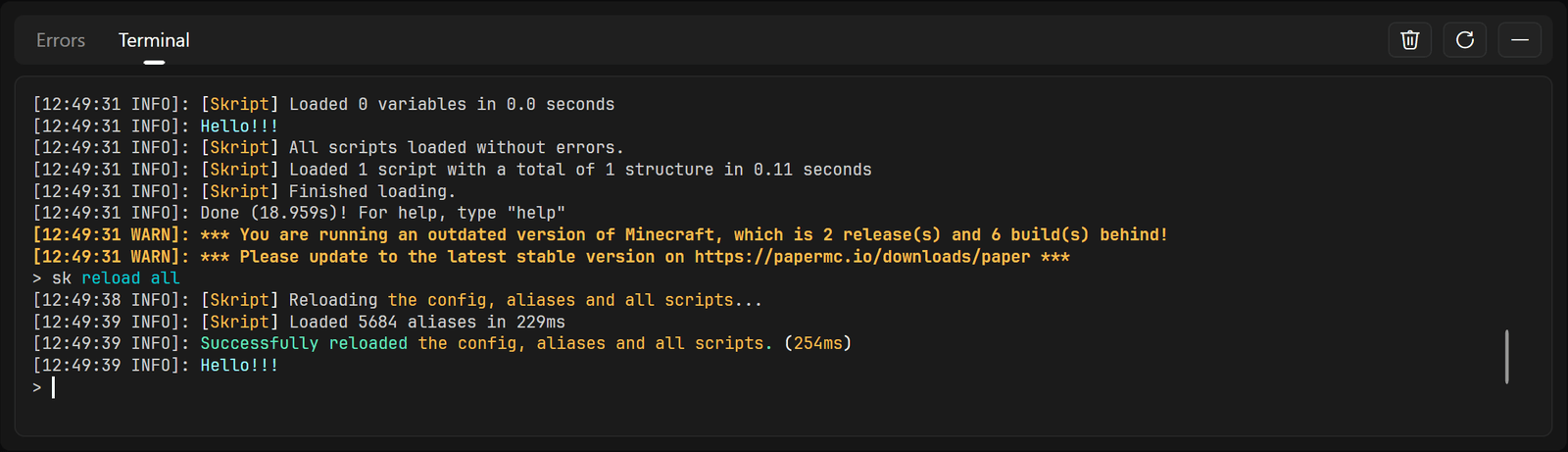
The Terminal colors can be configured in themes, which I took advantage of in the Midnight Cherry theme to introduce pastel colors.
The Split View feature
This is the third and final experimental feature in this build. It’s something I’ve promised to add for a long time, and now it’s finally here! But, as you might have guessed, it is also in a very early stage. It is essentially a prototype I put together in a few hours to test the concept.
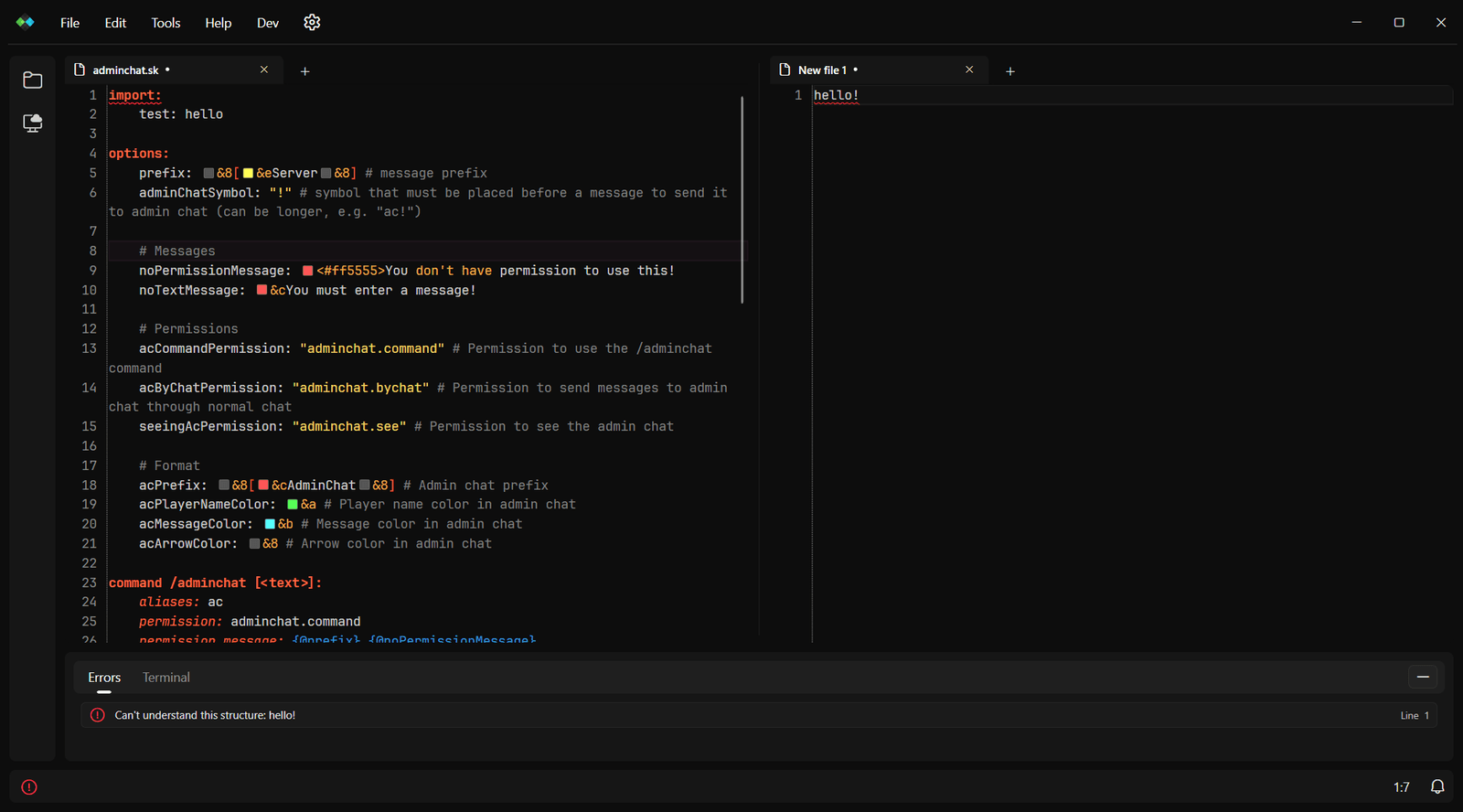
Implementing this required major changes to the app’s core logic. You shouldn’t expect it to work flawlessly - treat it as a fun prototype for now. For example, if you try to close the left tab while in split view… well, things might break.
Use File -> Close -> All to get unstuck :)
To activate Split View, make sure the feature is enabled in the Experiments settings, and then use the File > Split tabs menu item.
Other changes
Remote Connections & Explorer
- Added the root path setting to remote connections.
- You can now save a remote connection without testing it first.
- Fixed remote connection switching and disconnecting issues.
- Fixed explorer icons not updating when changing the file type.
- Explorer icon colors are now customizable in themes.
UI / UX
- Reworked the English localization to use sentence case. I originally used title case in SkEditor 3 because I read it was the standard approach - even though I personally didn’t like it. After doing more research, I found that the official Windows design guidelines actually recommend sentence case. I think it feels much more natural this way.
- Set Open Sans as the default UI font on platforms other than Windows. This finally fixes the issue with blurry bold text. This font is similar to the standard Windows font and looks much better than most of default Linux fonts.
- Programmatic scrolling (e.g., when using the “Go to Line” feature) is now smooth (if Smooth Scroll is enabled).
- Menu hotkeys are now disabled when the associated menu item is inactive.
macOS & Developer Tools
- Fixed opening folders in the Finder on macOS.
- The menu now displays the ⌘ Cmd icon instead of Ctrl on macOS.
- Changed the developer “Reload Theme” functionality to “Reload Themes”. This reloads the list of themes without requiring an app restart (though you still need to close and reopen the settings tab).
Closing remarks
That’s all I have for you today.
I hope you enjoy the new features and changes, and I hope you’ll look forward to their future development!
Please share your thoughts on the Discord server :D!